
ChatGPTOpenAI
Write in ChatGPT
Ask for two caption options, then bring your favourite into Composer. If your ChatGPT account offers custom apps, open your Composer connection settings to try a direct connection.
 PostboteSign in
Work on the words with any assistant. Paste the caption into a draft, or let a compatible assistant save it straight to your library after you grant access.
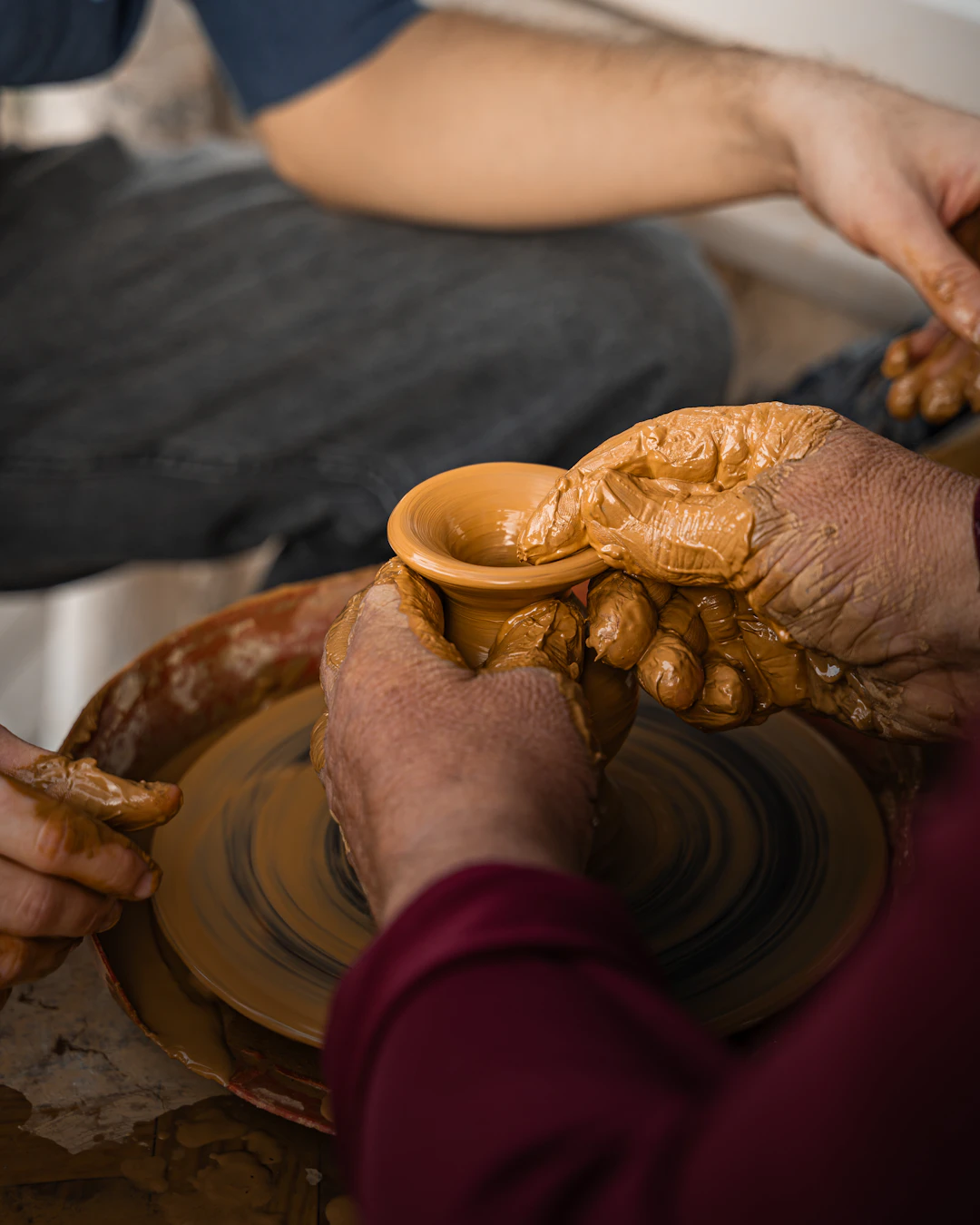
“My new cups come out of the kiln on Friday. Draft a Reel about the glaze and save it for review.”
Every chat below can help with your words. Direct access to your drafts depends on the app, its version and your account settings.
Ask for two caption options, then bring your favourite into Composer. If your ChatGPT account offers custom apps, open your Composer connection settings to try a direct connection.
Give Claude the facts behind your project and ask for a first draft. If your Claude account supports custom connectors, Composer’s connection settings walk you through linking your library.

Ask Gemini to shorten a caption for a second audience, then paste the result into Composer. Copy and paste is the available route in the everyday Gemini chat app.
Fill in the brackets with your project, ask your assistant and paste the result into Composer.
Open the draft studioWrite two captions about [what I made] for [my audience]. One is for Instagram, the other for YouTube. Include [three details]. Keep my voice [tone]. Give me one opening line for each.
ChatGPT and its mark belong to OpenAI. Gemini is a trademark of Google LLC. Claude is a trademark of Anthropic.